Screenshot to URL: Paste & Share Screen Captures Fast
Press ⌘V to paste any screenshot, hide sensitive details with local redaction, and copy a direct image link in seconds.
⌘V Clipboard Paste PNG / JPG / WebP Instant Direct URL Auto-Expiry & Redaction Local browser processing
Screenshot Review DeskCAPTURE ARMED
CLIPBOARD SCANNER ARMED (⌘V / CTRL+V)
⌘Cmd
+
VPaste
Capture or Paste Screenshot into Review Desk
Press ⌘V to paste clipboard pixels, drag an image here, or capture your display directly.
Works natively with macOS Cmd+Shift+4 and Windows Snipping Tool
Screenshot to URL Workflow
Capture, redact, and generate shareable screenshot URLs.
A screenshot is a small piece of evidence. It gives another person the same visual reference you have, which makes a confusing button, layout shift or error message easier to discuss. A good handoff shows enough of the surrounding page to make the problem understandable while keeping unrelated personal information out of the frame.
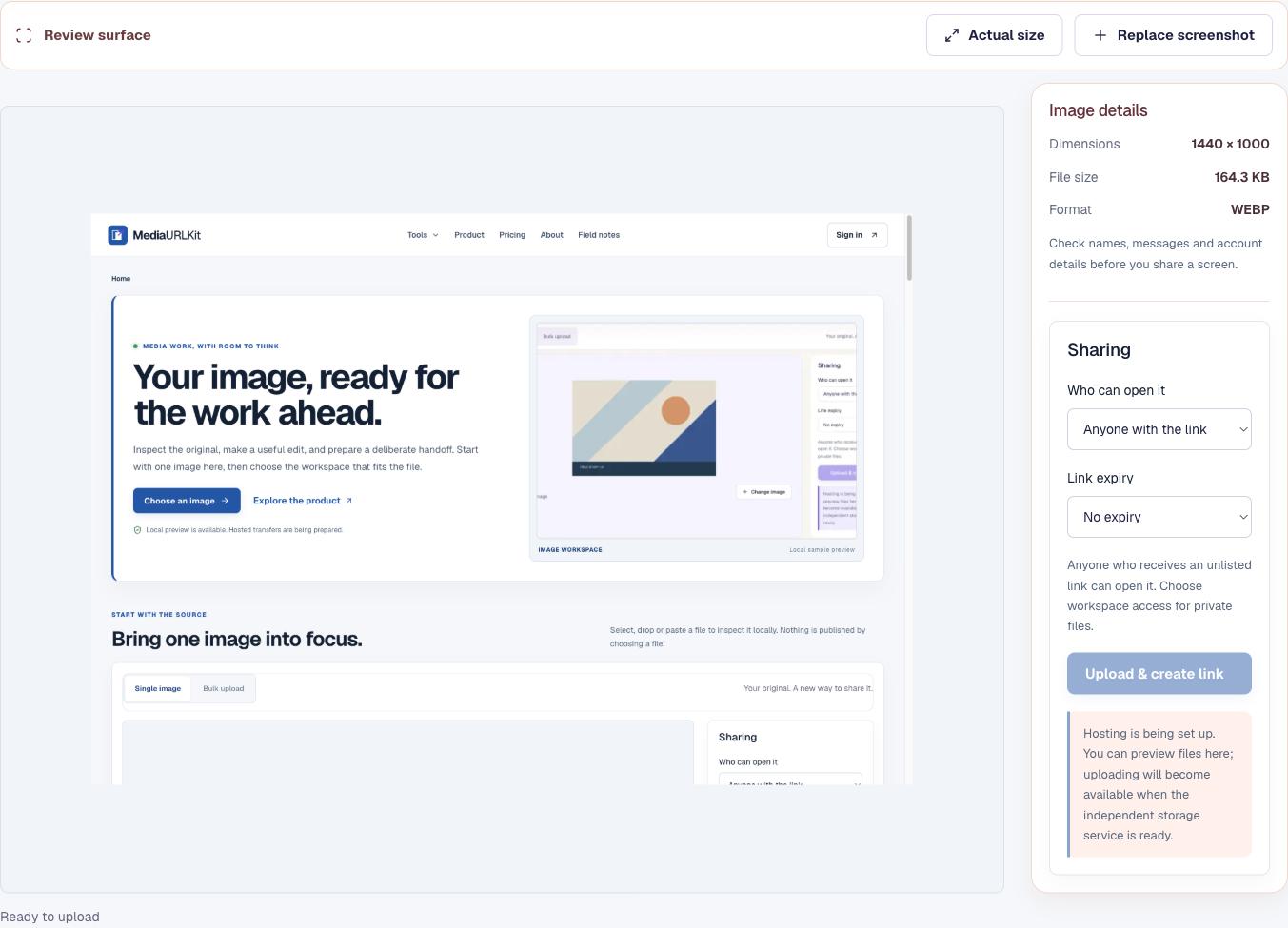
This review desk accepts a screenshot from your clipboard, a dropped file or the file picker. Once chosen, the preview shows the actual image and reports its dimensions, size and format. Nothing about those local steps publishes the image; the file remains on this device until you deliberately start a transfer.
Selected sample screenshot displayed with pixel dimensions and a format inspector. Local sample preview; no completed upload is simulated.
Capture the exact issue with surrounding context
Include the label, menu, page heading or surrounding control that explains where the issue occurred. A tight crop can remove the very context that helps a teammate reproduce it. On the other hand, a full desktop capture may include chat previews, browser bookmarks, account names or open tabs that have nothing to do with the report. Pause for a quick sweep around the edges before sharing.
For a layout bug, capture the viewport at the width where it breaks. If the page behaves differently after scrolling, capture the relevant position and note the step that led there. A single still image cannot show a transition, so describe whether the problem appeared after a click, resize, reload or navigation. When the timing matters, pair the screenshot with a short written sequence rather than sending a folder of nearly identical captures.
Text needs room to remain legible. Browser scaling, operating-system display scaling and image resizing can all change how a screen appears to the recipient. The actual-size control helps inspect small text at its source dimensions; the fitted view helps you see the whole composition at once. Neither view changes the source image.
A support specialist checks the surrounding details before sharing a capture.
Step-by-Step Workflow
From clipboard capture to shareable URL in 5 steps
Use this sequence when filing a bug, asking for design feedback or explaining a setup problem to a client.
Direct Clipboard Source · No Intermediate Resampling
Recreate it.Return to the page and state that produced the issue. Record the browser or device when that difference matters.
Compose the frame.Keep the relevant control and enough nearby context to locate it. Close unrelated windows and wait for temporary loading states to settle.
Inspect the image.Paste or choose the capture, compare fitted and actual-size views, and confirm that the text or error is readable.
Choose its audience.Use an access setting that matches the people who need it. Treat any link that can be forwarded as something another person may see.
Write the missing context.Explain what you expected, what happened, and the shortest path to reproduce the result. The picture supports that account; it cannot replace it.
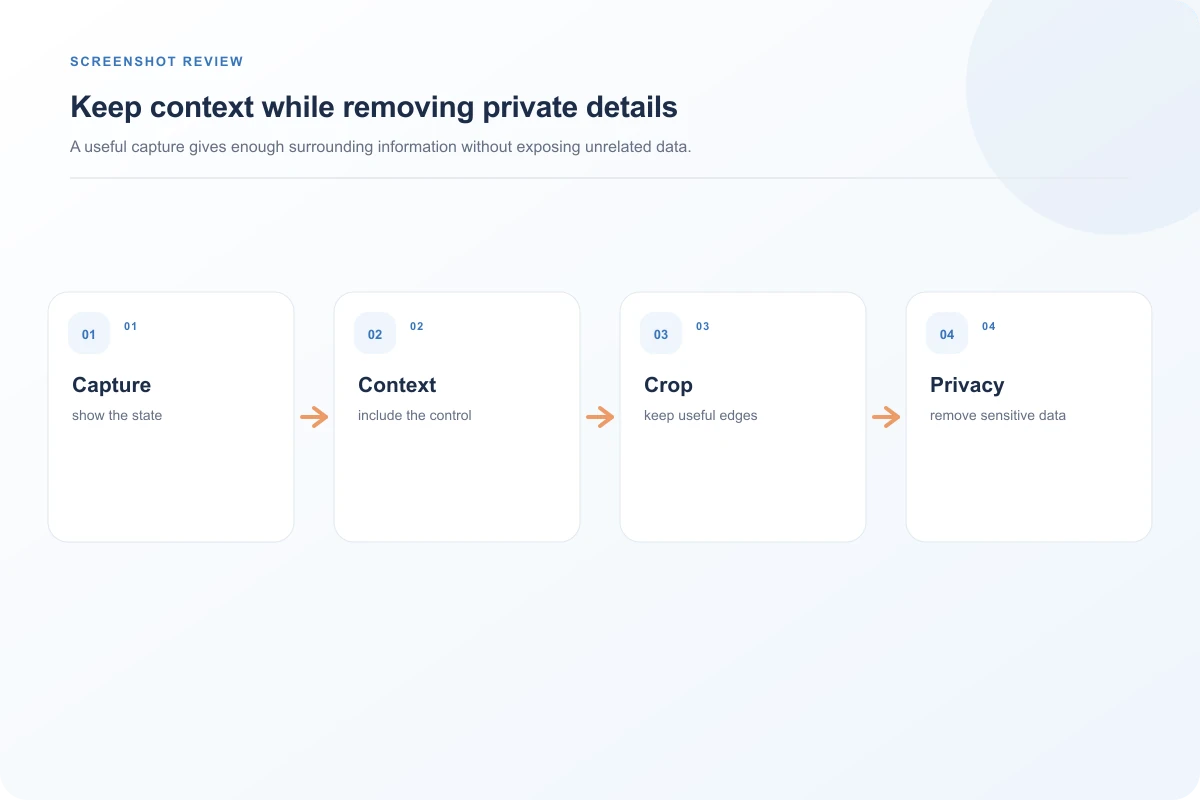
Capture, context, crop, and privacy each shape a useful screenshot handoff.
Troubleshoot screenshot clarity and rendering issues
The problem is an interaction. A still frame cannot tell a reader what happened between two states. Add a numbered sequence, or record a short screen clip if motion is essential. Avoid recording passwords, private messages or unrelated customer data.
The text appears blurry. Check the source dimensions before enlarging it. Upscaling makes pixels larger; it does not restore detail. Capture again at the display scale where the problem occurs, or use a browser zoom level that keeps the relevant text readable without hiding the context.
The color looks different. Mention the display, browser and color mode if the discrepancy matters. Color profiles, night modes and high-contrast settings can alter what a screenshot communicates. A color swatch may help, but it cannot guarantee identical displays.
The image looks rotated or cropped. Inspect the selected original and replace it if the capture application exported a different frame than expected. The review page displays the chosen image; it does not repair a mistaken capture.
Privacy-safe sharing for support and bug reports
Support requests often contain other people’s information: a customer name in a table, a teammate’s avatar, an email preview or a private workspace title. Remove what the recipient does not need to solve the problem. If you are reporting a security issue, share details through the affected service’s private reporting channel rather than a public forum. For an ordinary issue, keep the description factual and specific: name the page, the action and the visible result. That makes the image useful without asking the reader to guess what you meant.
Once storage is configured for this independent service, a confirmed upload will produce the link shown in the tool. Until then, the local preview is for inspection only and does not claim a successful transfer. For a related example of image behavior after delivery, read why an image URL can download instead of opening.
Yes. The review desk accepts a clipboard image as well as a dropped file or a selection from your device. The local preview shows the chosen image and its file details. It does not publish the capture by itself.
How should I prepare a screenshot before sharing it?+
Include enough of the surrounding interface to explain the issue, then check the edges for email addresses, account names, notifications, or unrelated customer information. This workspace previews the image; use a separate editor if you need to redact pixels.
Will the screenshot URL be ready after I select a file?+
No URL is shown until a separately configured hosting service confirms the transfer. Independent cloud storage is not enabled in this development build, so selecting a screenshot currently stays a local inspection step.
Can the recipient see the original image dimensions?+
The review interface reports dimensions from the selected file. The screenshot itself is not resized during inspection. A future hosted link will serve the uploaded file according to its verified access settings.
What is different between a direct image URL and a share page?+
A direct URL serves the image file itself, which suits an image element or a document that expects a source URL. A share page adds a page around the image. Choose based on what the destination can display.