Documents
Reference documents
A PDF is useful when the layout must stay consistent. Keep an editable source separately if colleagues will revise it.
Upload zip archives, documents, or data files and create secure, high-speed download links with custom expiration.
| FILE NAME | SIZE | SECURITY | STATUS | LINK / ACTION |
|---|---|---|---|---|
Enterprise Storage Queue Ready · Drop Files to EnqueueBatch upload documents, archives, binaries, or datasets. Files stream directly to secure edge buckets. 50 Parallel Transfer ChannelsAny File TypeTLS 1.3 / S3 EnvelopeSHA-256 Validated | ||||
Checking vault infrastructure readiness…
File to Link Architecture
When several deliverables travel together, a queue is easier to review than a series of unrelated upload dialogs. The Transfer Room keeps each selected file on its own row, with its filename, size, progress and eventual result tied together. That makes it easier to see which item needs attention and which link belongs to the approved copy.
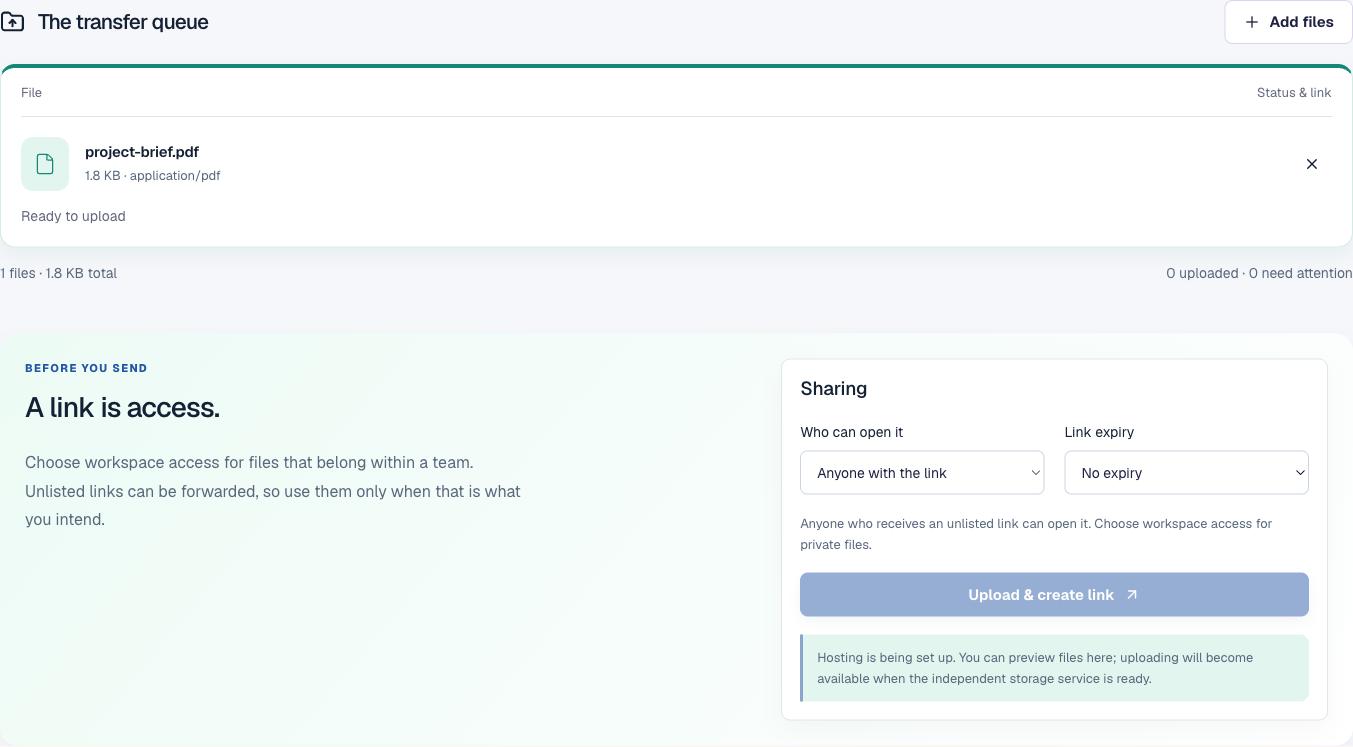
Start with names. “report-final.pdf” and “report-final-revised.pdf” may look similar in a crowded queue, so check the exact version and size. If two files have the same name but are different revisions, give them clearer names on your device before adding them. The queue rejects duplicate selections of the same file, which helps prevent an accidental double transfer.
Statuses describe separate steps. “Uploading” means bytes are still being transferred. “Confirming” means the service is checking what arrived. Only a completed row should have a confirmed result. A browser reaching the end of its progress bar is not, by itself, proof that the storage service accepted and recorded the object.
When a row fails, keep track of that item while reviewing the message. Check whether the file is empty, too large, named with unsupported characters or outside the formats this service accepts. Some browsers report a blank MIME type for otherwise ordinary files, and the hosting service may apply stricter validation than the chooser. Do not rename a file to disguise its actual format.

A PDF is useful when the layout must stay consistent. Keep an editable source separately if colleagues will revise it.
Include clear previews and sensible filenames so a recipient can distinguish a source file from its export.
Tell recipients what the archive contains and how to verify its source. A link does not make an unknown executable safe.
Check dimensions, duration or codec in the relevant tool when playback or display behavior matters.
These are examples of a review method, not a guarantee that every format is supported by this independent service. Each file is checked against the configured server policy, which must stay narrower than whatever the operating system’s file picker can display.
When you send several files, avoid a message with five bare URLs and no explanation. Match each link with the exact name, purpose and version. Tell recipients which item to review first and what action you need from them.
A browser page can close, a tab can be lost or a project can outlive the current session. Keep the authoritative record in your team’s project system: who approved the file, why it was shared, and when an old copy should be removed.
Large source assets can take longer to transfer over a mobile connection. If the recipient needs only a preview, make a separate preview export rather than silently changing the only source. Always verify optimized versions before archiving.
Read the error for the affected row before retrying. Check the network connection, the selected access setting and whether the file changed while it was queued. If a transfer was cancelled, confirm the row’s state before starting again. Retrying a partially completed operation without checking can create duplicate assets or leave the recipient with a link to the wrong version.
After all transfers are confirmed, copy each link beside the matching filename in the document or message you are preparing. Open the link in a separate browser context to check that it resolves as the expected type of destination. Test restricted links while signed in as an allowed member; test public links without relying on your authenticated session. Share only the items the recipient needs, and remove outdated copies according to your organization’s retention rules.
Remote storage for this independent build is not yet provisioned, so this preview cannot complete a real transfer. It will report the link only after the separate service confirms the file. For more on URLs that stop working when embedded, read the signed-link expiry explanation.
Useful details
The general file workspace is for items that do not need the dedicated image, video, audio, GIF, PDF, or HTML review interface. File acceptance limits will be published once independent hosting is configured.
The queue is designed to keep multiple files and their individual states together. In this development preview, the storage backend is not connected, so queued local samples cannot complete a cloud transfer.
A confirmed transfer should associate its result with the filename and its own status row. This build does not display a completed URL without a service confirmation.
Unlisted links are harder to discover but can still be opened by anyone who receives the URL. Do not use a forwardable link for confidential material that needs a dedicated access-control system.
Keep an authoritative copy in the storage or project system your team relies on. A transfer queue is not a backup archive, and a link does not prove that the recipient saved a durable copy.