HTML to URL: Host & Preview Web Pages from Code
Paste HTML and CSS snippets to preview how they look in a browser and generate a temporary shareable demo link.
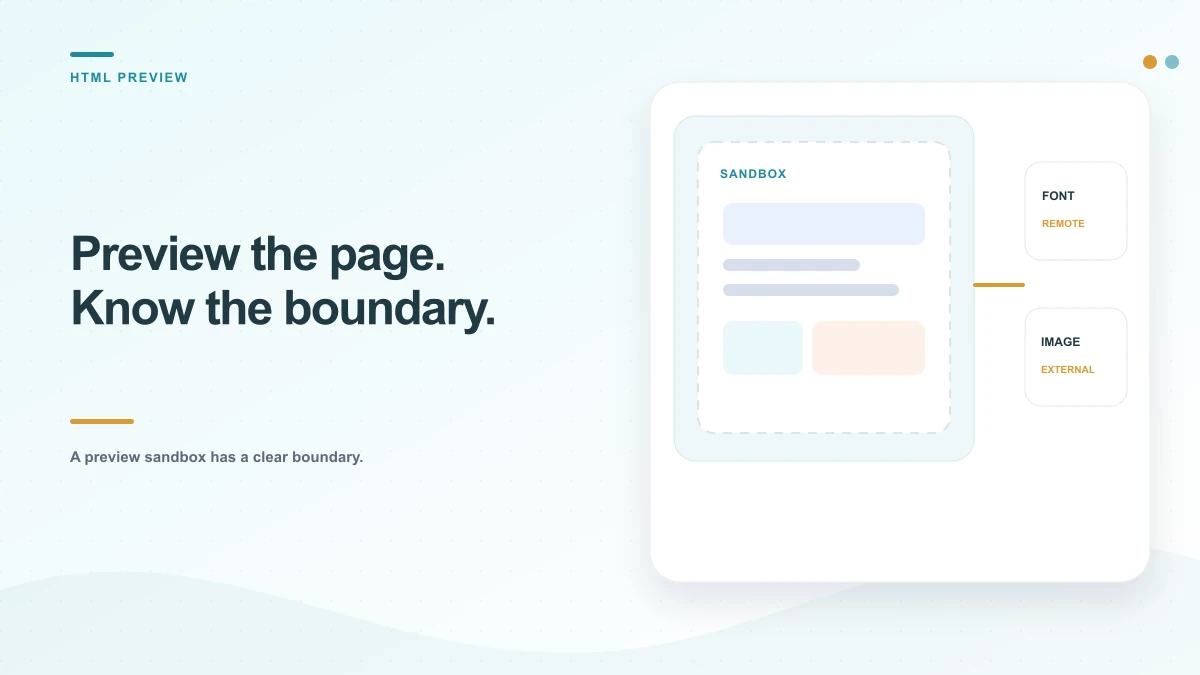
Checking HTML hosting availability…
HTML to URL Architecture
Preview standalone HTML markup and generate a live URL.
The HTML workspace places editable source beside a sandboxed preview. You can switch the preview between a desktop-sized and narrow mobile-sized frame, then download the current document for local inspection. The example is a starting point, not a prebuilt live page. Your edits stay in the browser until you download them or a configured service accepts a transfer.
Host Application Sandbox Policy
The code editor isolates all untrusted HTML in a sandboxed iframe with strict Content Security Policy. Cookies, credentials, and parent DOM remain unreachable.
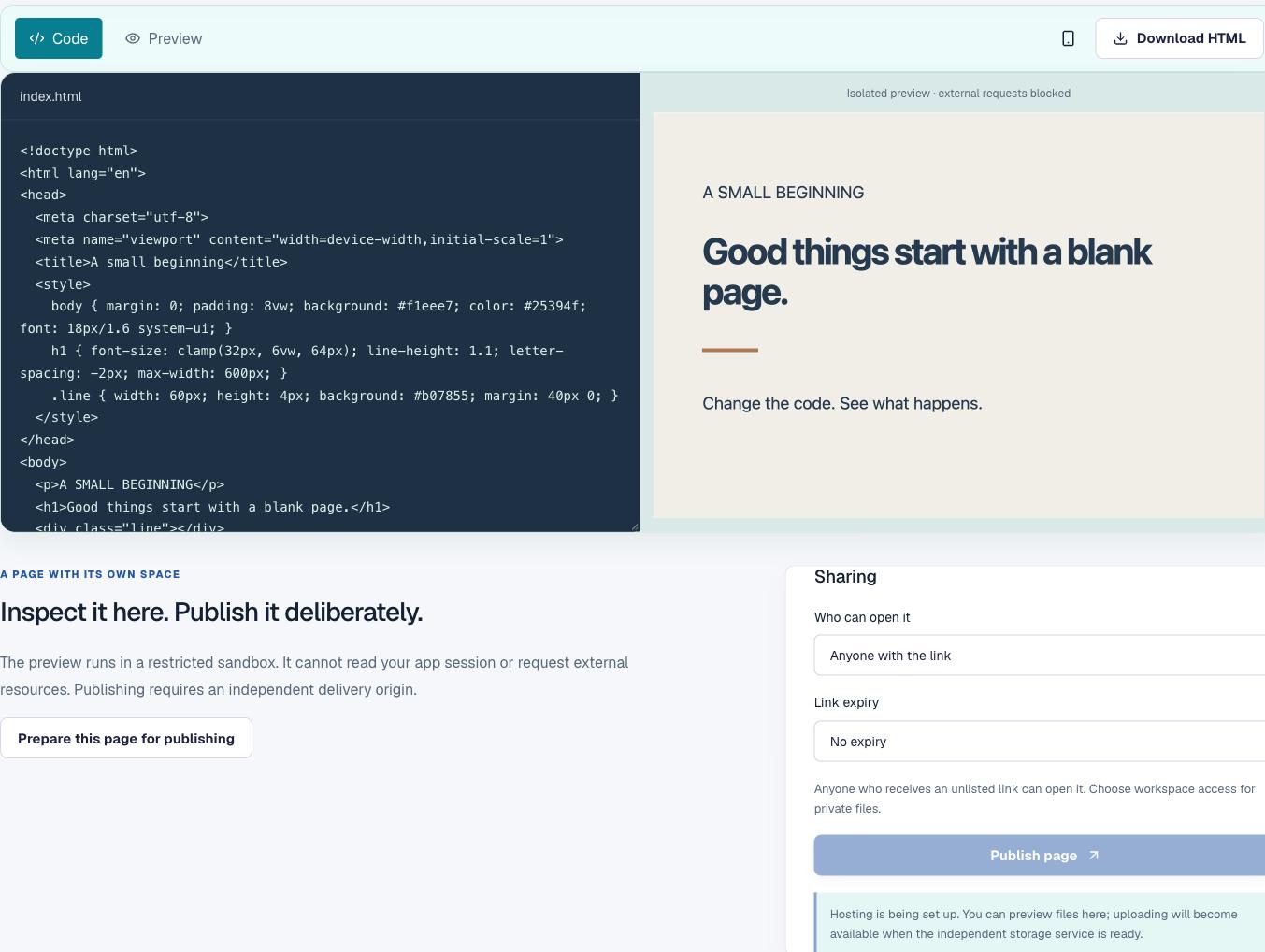

Inspect responsive layouts across desktop and mobile viewports
Check the hierarchy from the top of the page to the footer. Read the largest heading aloud, scan for text that wraps awkwardly, and test both wide and narrow frames. A heading that fits a laptop may overflow a phone. A button can look finished while having no destination. A visual sample helps you notice spacing and contrast, but keyboard focus and screen-reader behavior still need deliberate checks in the downloaded page.
Try the page at more than one viewport width. Use flexible dimensions and relative spacing where practical, and check that images retain useful proportions. Test long titles, short titles and content with a different character set if the page will accept user text. Responsive preview is a rough comparison, not a physical phone or a substitute for the target browser’s developer tools.
Pre-Publishing Review
Verify markup, semantic structure, and security
- Read the structure.Use a single clear main heading, meaningful sections and descriptive link text so the page has a sensible outline.
- Check the small screen.Switch to the narrow preview, inspect line lengths and confirm that important controls remain visible.
- Review the code you did not write.Scripts can change a page’s behavior. Remove unknown snippets, tracking calls and forms that send data somewhere you have not approved.
- Download and test locally.Open the saved file from disk and check that it contains the version you intended to keep. A download is not the same as a published URL.
Understanding iframe sandboxing and origin isolation
The preview runs inside an iframe sandbox that is isolated from the account interface. It can render the local HTML and inline styles, and its sandbox permissions do not grant it access to the parent page’s session. The preview policy blocks external network resources, so a Google font, remote stylesheet, script CDN or hosted image may not appear even though it works on a normal website. That difference is intentional during review.
Do not treat a successful render here as proof that the page is secure. Review scripts and forms before opening the downloaded file outside this frame. Do not paste private tokens or passwords into HTML source. If the page needs remote data, decide which origin should provide it and what information that request will expose before changing a production policy.
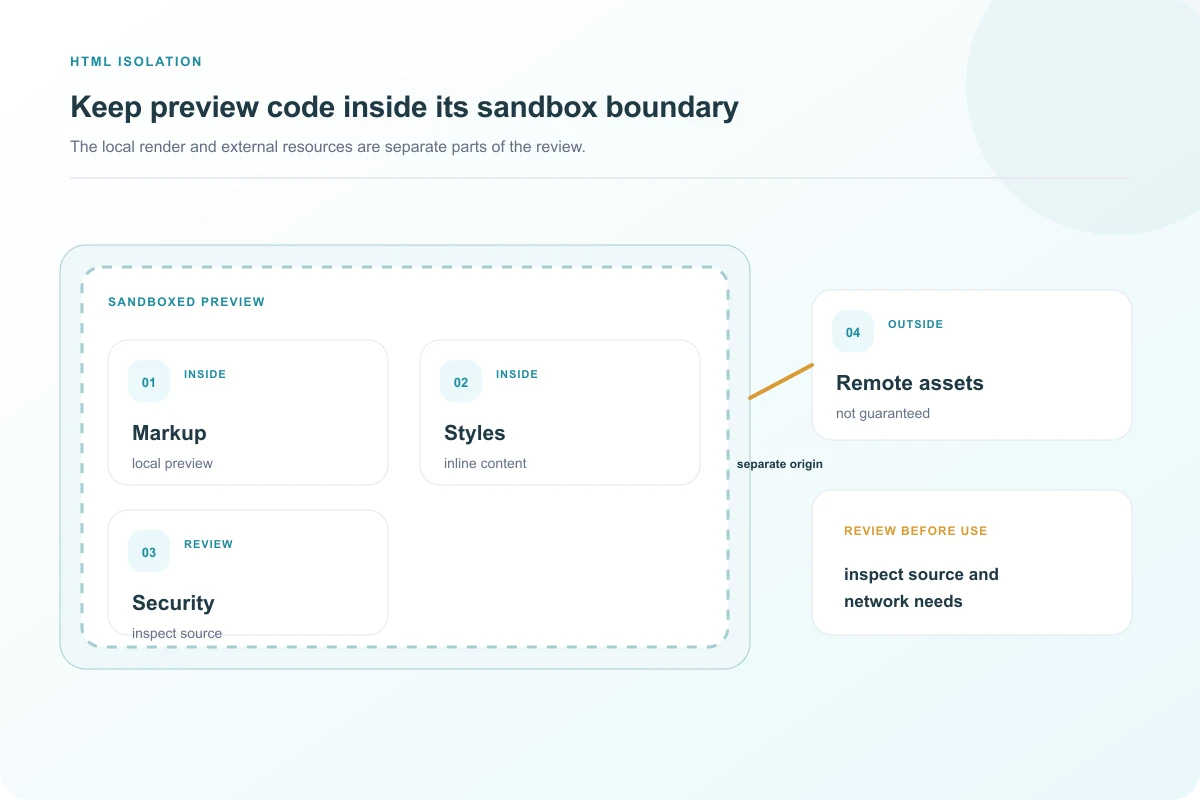
Resolve relative paths and asset dependencies
Remote resources are omitted in the isolated preview. If the final page will need a stylesheet, font, logo or illustration from another origin, inventory those dependencies and check that you are allowed to use them. A local preview cannot tell you whether the third-party host permits embedding, whether the URL will remain stable or whether the resource will be available to your visitors. When practical, include the small assets with the site or use a stable, approved hosting location.
Check every path after downloading the HTML. A reference such as `./images/mark.svg` only works if the image travels with the page at that relative location. An absolute path from your computer may work for you and fail for everyone else. Document the folder structure if you are handing a package to another person, and test the copy from a clean directory rather than the source project where extra files can hide a broken reference.
External scripts deserve special attention because they can change page content and send information over the network. Identify the owner and purpose of each script, verify that it is necessary and review its privacy impact. A script that is convenient on a prototype may be inappropriate on a page containing user-submitted material. Keep secrets and service credentials on a trusted server; client-side HTML cannot protect a value included in its source.
Forms should have a clear destination and a privacy explanation. In this preview, form submission is blocked. Before a form is published elsewhere, test validation, success and error states, keyboard access and the server that receives the data. Do not collect personal information unless the project has a sound reason and a clear retention plan.
Deploy live shareable HTML pages with confidence
A downloaded `index.html` is a local file. It becomes public only after a hosting service accepts and confirms it. This independent build has no delivery origin configured yet, so it cannot claim a public URL or live publication.
Before publishing later, confirm the destination domain, the version to release, the page title and description, and the links that should be available to visitors. Test the published page from a clean browser session so local files, cached resources or your logged-in account do not make it appear to work for everyone. Revisit the page after deployment to confirm that external resources load as intended and that interactive features behave safely.
Accessible HTML can make information easier to navigate than a screenshot or flattened document. Use real headings, landmarks, labels and link text; provide text alternatives for meaningful images; and ensure keyboard users can reach interactive controls. The preview can help with the visual pass, while semantic checks belong in the source and in a browser. When the independent publishing service is provisioned, a confirmed transfer will be the point at which a shareable address is created.
Useful details
HTML workspace questions
Does the HTML preview run in the same page as the editor?
The preview is isolated from the editor surface to limit interaction between the authored markup and the application UI. Treat any code you did not write as untrusted, even in an isolated preview.
Can I include JavaScript or load outside resources?
The sandbox applies restrictions to the preview, and external dependencies may not behave as they do on a published site. Review the generated document and its network requirements before planning a real deployment.
Does this tool publish a live website?
No hosted URL is created in this development build. The HTML editor can preview local markup, while independent hosting and publishing services are still being configured.
Can I use HTML to host an image or PDF?
An HTML page can reference media, but a destination that expects an image or PDF file usually needs a direct file URL. Use the matching media workspace when you need to inspect that original file.
How should I check a page before publishing it?
Inspect the preview at the intended width, verify links and asset paths, and test keyboard navigation and readable contrast. Also review external scripts and embedded content because they can change the page’s behavior after publication.