PDF to Link Architecture
Turn multi-page PDFs into instant, readable web links.
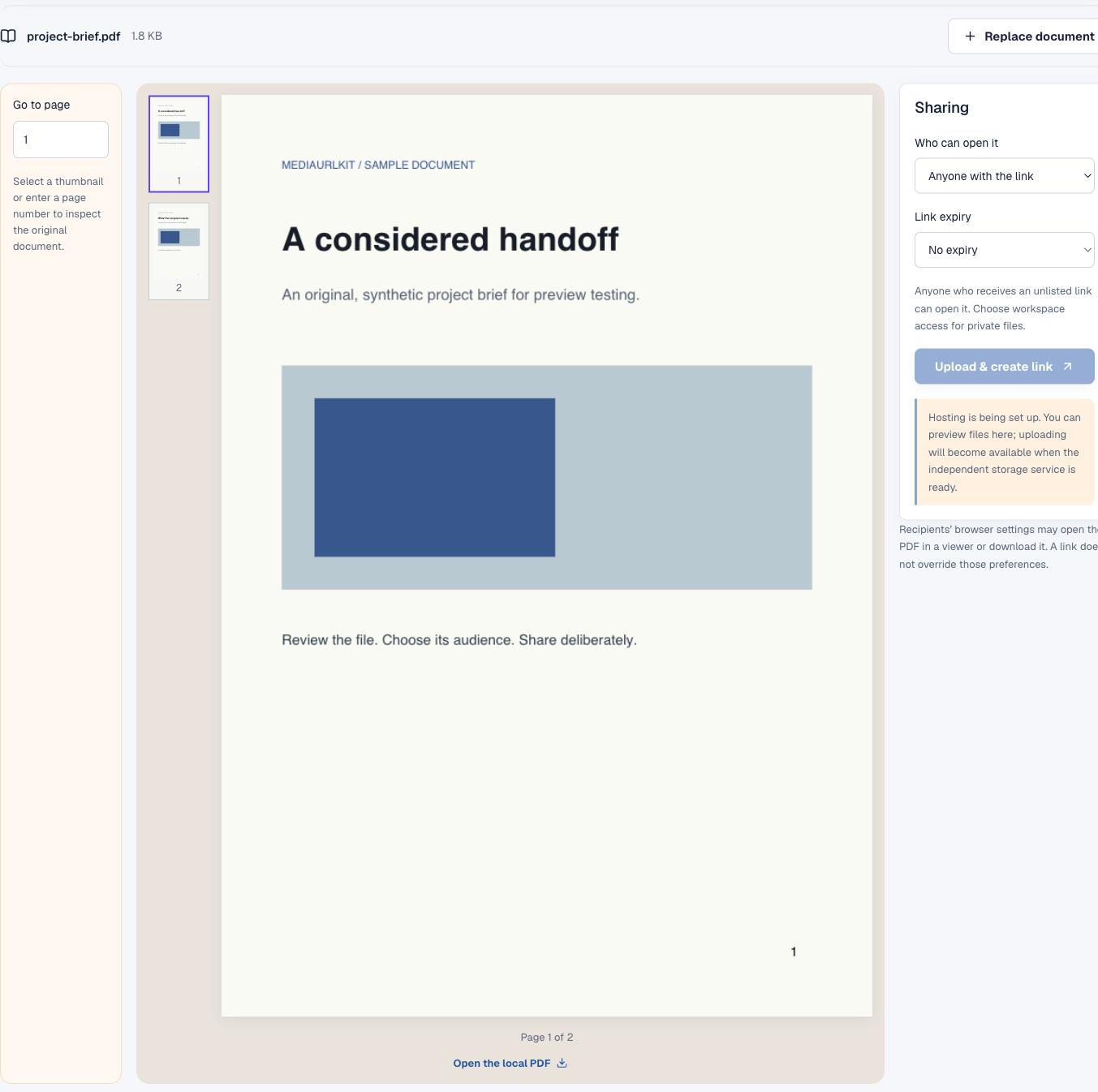
Before sharing a PDF, open it and inspect the first page, a middle page and the last page. The document viewer shows the selected file itself, with page navigation so you can check that the export contains the expected pages. This is a practical handoff check: a filename such as “final-v3.pdf” does not tell a reader whether the document opens, has the right order or still contains draft notes.
Look atOpening pageA representative middle pageLast page and total countThose three checks catch many export mistakes before the link leaves your desk.
01 / Readability
Verify viewport readability and layout scaling
Look at the smallest labels, footnotes and tables. A slide deck exported to a narrow page may preserve its content while shrinking the type until it becomes uncomfortable to read. Dense diagrams may need a landscape page or a separate high-resolution image. Check headings, page numbers and the whitespace around edges, especially if the recipient may print the document.
02 / Completeness
Audit page completeness and orientation
Look for blank pages, clipped signatures, comments, tracked changes and appendices that were meant to be removed. Check orientation on mixed portrait and landscape documents. A page can exist in the exported file and still be difficult to read if the content was rotated or cut off before export.
03 / Findability
Ensure selectable text and accessible structure
When possible, export selectable text instead of flattening every page to an image. Give the document a clear title and use headings in the source document so screen-reader navigation has structure. Scanned pages may need OCR to make text searchable; OCR output should still be checked for names, figures and punctuation.
Delivery Architecture & ProtocolsChoose direct browser links, embeds, or downloads
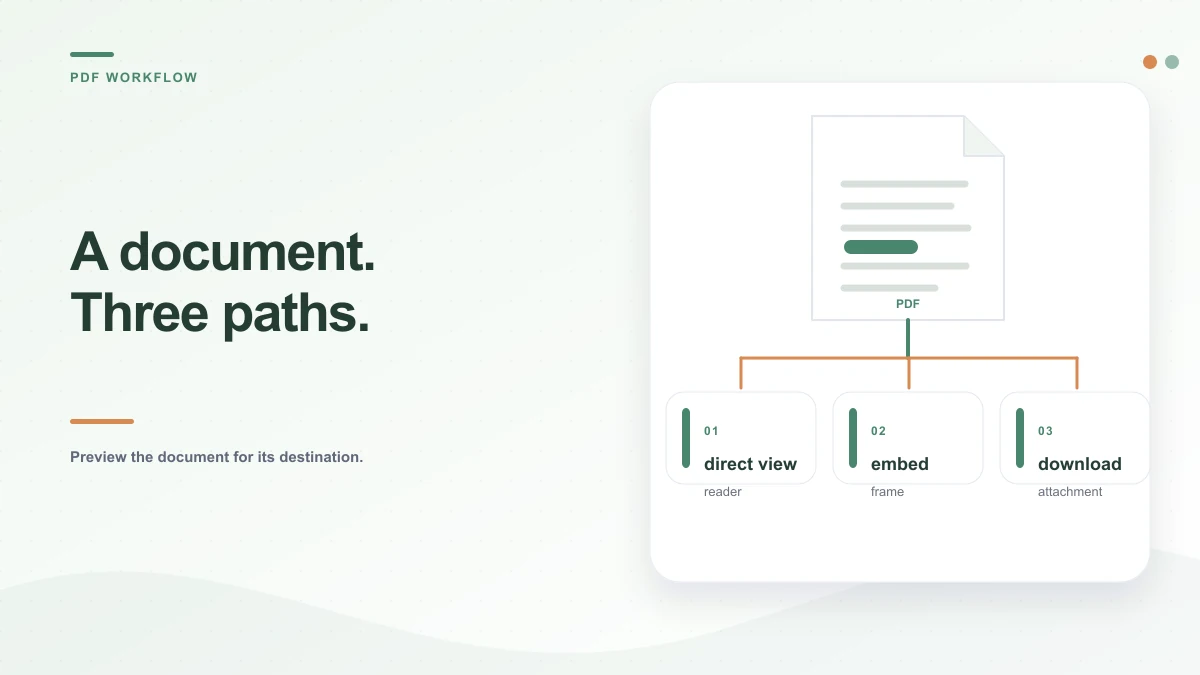
Direct Browser Tab (inline)In-Page Frame (frame-ancestors)Attachment Stream (download)
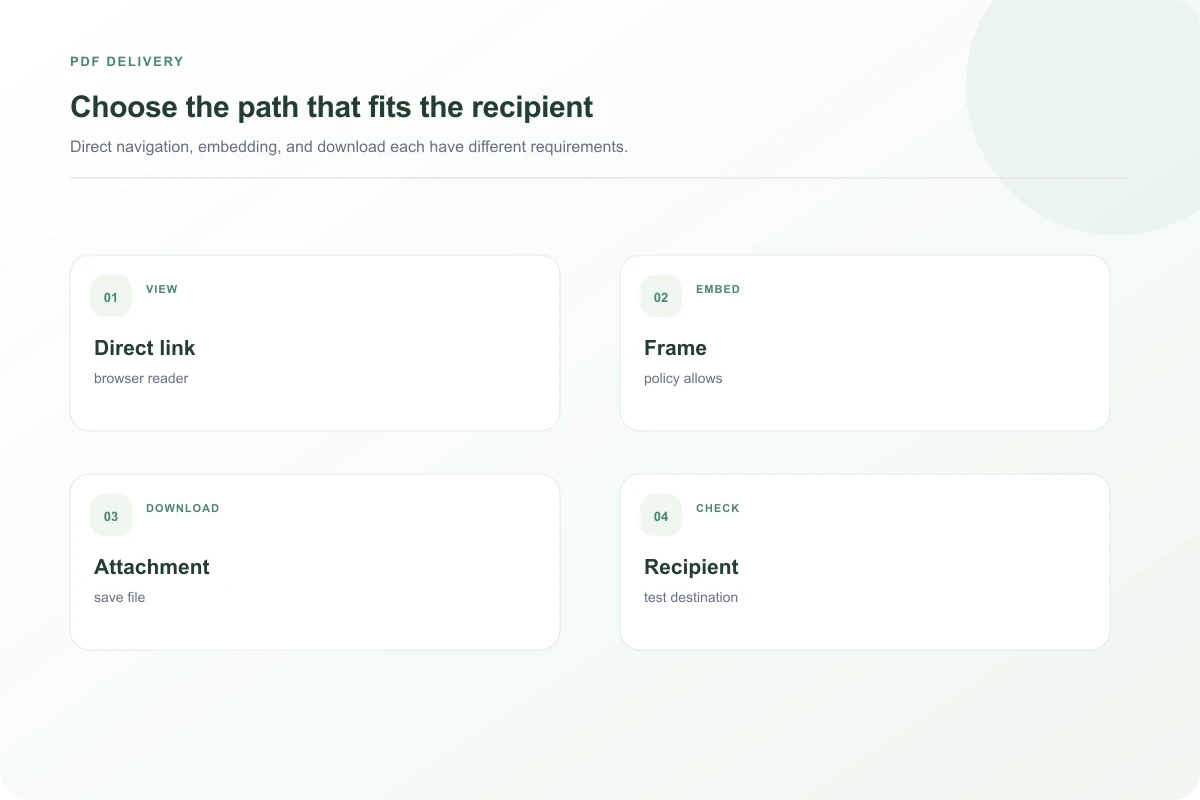
A plain link lets a reader open the document using their device’s PDF handler. An embedded viewer keeps the PDF in the surrounding page, which can suit a policy, brochure or reference sheet. A download button communicates that the recipient should save a copy. These are different experiences even when they point to the same file.
Embedding depends on more than the HTML on your page. The PDF response must be allowed to appear in a frame, the origin and browser security rules must permit it, and the visitor needs a viewer capable of rendering it. A direct link can work while an iframe remains blank. A server’s Content-Disposition header and the user’s browser preference can also make the same PDF open or download.
Place a normal “Open or download the PDF” link near an embedded viewer. Make the link label describe the document rather than saying only “click here.” If the content is essential, include a readable HTML version as well; a PDF alone can be difficult on small screens and assistive technology.
<object data="contract.pdf" type="application/pdf">
  <a href="contract.pdf" download>
    Download contract.pdf (2.4 MB)
  </a>
</object>
Direct Browser Tab
Opens the PDF in Chrome, Safari or Edge's native engine. Preserves reader bookmarks, pinch-to-zoom, and native print dialogs.
- Best For: Multi-page reports, legal contracts, dense documentation
- Headers:
Content-Disposition: inline - Device Reach: 100% universal desktop & mobile support
Contextual Embedded Reader
Positions the document beside web app controls, forms, or sidebars. Requires explicit CSP permission to avoid blank frames.
- Best For: Interactive portals, onboarding flows, spec sheets
- Headers:
CSP: frame-ancestors 'self' - Requirement: Needs HTML / download fallback on mobile viewports
Forced File Download
Triggers immediate download to disk without navigating away from the current workspace or triggering third-party plugins.
- Best For: Invoices, tax receipts, templates, offline archives
- Headers:
Content-Disposition: attachment; filename="..." - Safety: Neutralizes executable or active script payloads
Access ControlConfigure document privacy, expiry, and access governance
Contracts, invoices, personnel records and customer reports usually need restricted access. A public marketing brochure may be intended for anyone. An unlisted address is not a password: anyone who receives it can forward it. If you need a revocable or time-limited handoff, check that the service actually supports those controls before promising them to a recipient.
PDF metadata can contain an author name, title or source application. Review it when the document has privacy implications. Password protection may help when a separate, approved channel exists for communicating the password, but it can also interfere with previewers, search and accessibility.
Deep-Dive Diagnostic Guides
Diagnose why your document might fail to render or behave unexpectedly across different browsers: