Compare SVG document and image contexts, then inspect dependencies, MIME type, dimensions, and clipping with safe self-contained fixtures.
An SVG URL opens in a browser tab and shows the complete design. Put the same URL in an <img> tag and a logo, photo layer, or font disappears. Ensure vector graphics serve the correct image/svg+xml MIME type by hosting assets through our image to link workspace. Another version renders nothing at all. The first instinct is to rewrite the image tag, but the more revealing question is what the SVG depends on and which browser context is rendering it.
SVG can be a document or an image resource. A document context has capabilities that a passive image context does not. MDN's SVG-as-image guide explains restrictions on active content and external resources when SVG is used as an image. That restriction is valuable for safety; it also means a design that relies on a remotely loaded bitmap, stylesheet, font, or script may not survive unchanged in <img> or a CSS background.
Start by reducing the file to visible geometry
Make a copy of the SVG. Keep only a root <svg>, an explicit viewport, and one simple shape with a fill color. Serve it through the same URL path and image element. If the shape appears, the delivery and basic image rendering path work. Reintroduce the original content in groups to find what disappears. This is more decisive than changing MIME headers while leaving an external dependency or out-of-view geometry untouched.
For a small safe fixture, the essential structure is:
<svg xmlns="http://www.w3.org/2000/svg" width="320" height="180" viewBox="0 0 320 180">
  <rect width="320" height="180" fill="#dbeafe"/>
  <circle cx="90" cy="90" r="52" fill="#2563eb"/>
</svg>
There is no script, remote dependency, or user-provided markup here. The width and height give the image a natural size. The viewBox describes the internal coordinate rectangle. MDN's viewBox reference explains that mapping. A missing viewBox is not automatically invalid, but wrong coordinates or an unexpectedly small viewport can clip content. Inspect the root attributes and the visible shapes' coordinates before guessing that the browser rejected the file.
What the local image test actually showed
We created two original SVG files with the same 320 × 180 viewport. The first contains self-contained geometry and text. The second refers to a separate raster image on another local origin. Both endpoints returned status 200 and image/svg+xml. In our Chromium 156 image-element test, the self-contained badge displayed while the external raster in the second SVG did not; the screenshot shows a missing-image symbol inside that SVG. Direct navigation to the external-resource SVG fetched its nested raster with HTTP 200. This illustrates one image-context dependency failure, not a guarantee that every engine handles every external reference identically.
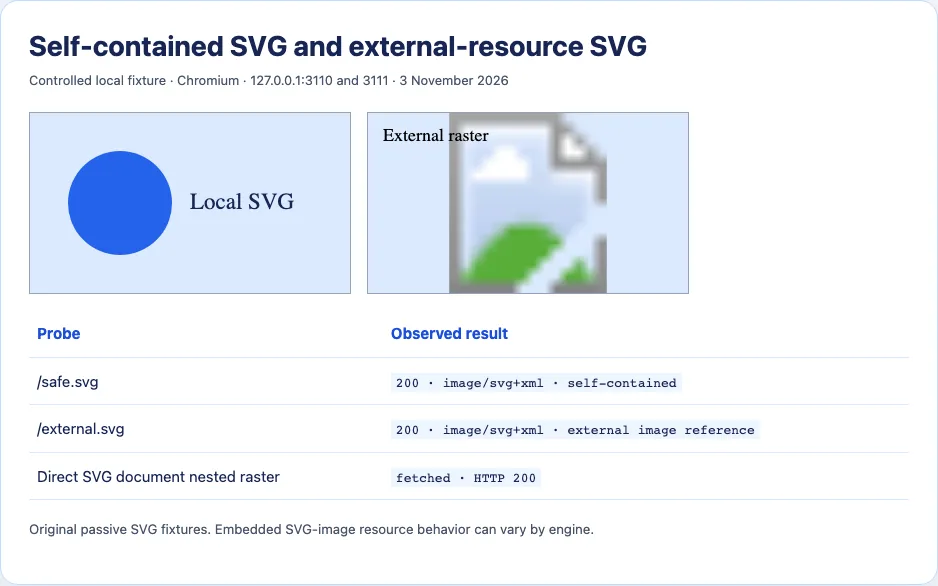
The image URL itself can still load successfully while one referenced resource cannot. In the Network panel, look for nested URLs in the SVG source and any associated failed requests. Check whether a linked bitmap, style, or font is essential to the design. For a portable SVG image, prefer self-contained paths and fills. Where a raster is essential and the image context will not load it reliably, produce a safe flattened raster output or incorporate assets through a controlled, authorized build process.
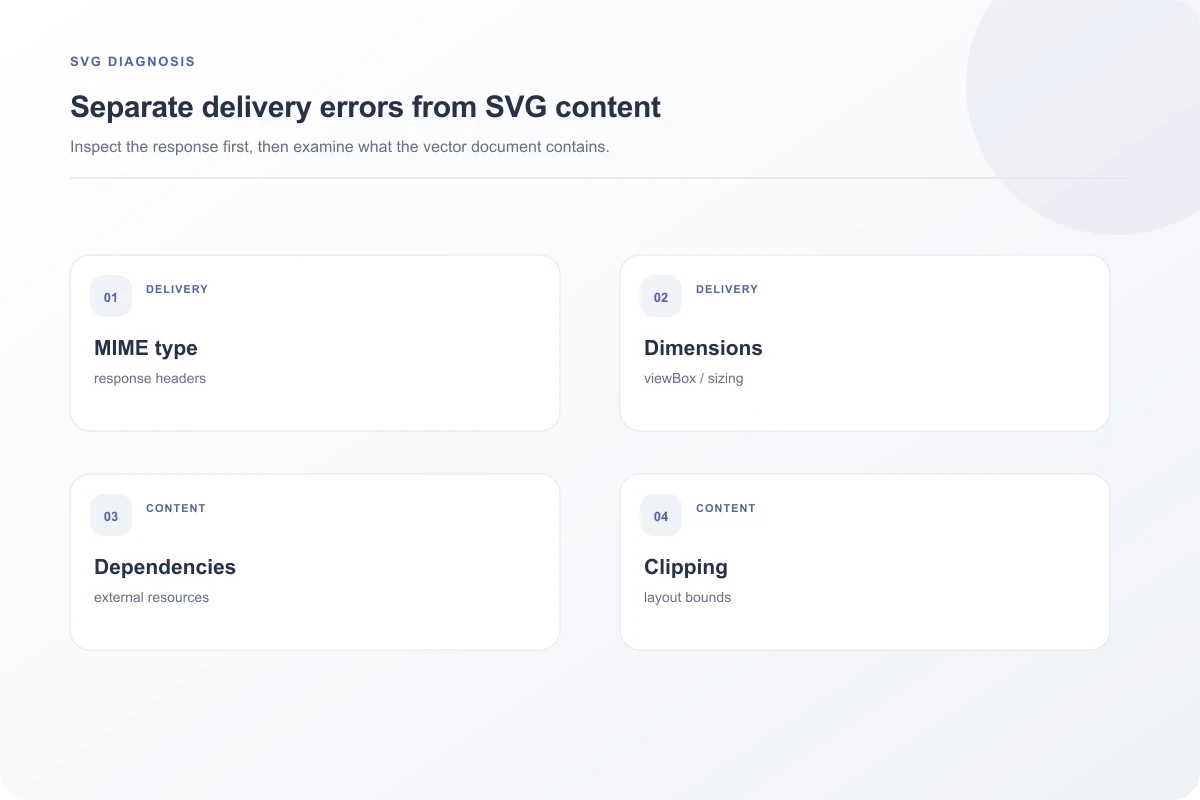
Separate delivery errors from SVG-content errors
Inspect the final GET response for status, bytes, Content-Type, and redirects. image/svg+xml is the usual media type for an SVG image. MDN's MIME guide explains why a file extension alone does not define the response. An .svg URL might actually return an HTML login page or error body. Fix the path or access issue before editing XML. If the bytes are SVG but the server declares a different type, correct the delivery metadata and retest the exact public URL.
Next parse the file as XML and inspect the browser console for errors. Unclosed tags, malformed attributes, missing namespace information in a standalone file, or a failed referenced asset can make the output differ from a design tool preview. A design tool may also embed fonts that the browser does not have; text can change width, disappear under a mask, or be clipped. Converting essential lettering to paths may improve portability when licensing permits it, but it also makes text less accessible and harder to edit. Use it deliberately, not as a default response to every SVG issue.
The embedding method matters. <img src="..."> and background-image: url(...) use image contexts. Inline SVG in a trusted page participates in that page's DOM and CSS. <object> or <iframe> can create document contexts with different capabilities. Do not move untrusted uploaded SVG into an active document context just to make a missing script run. That can expose visitors to script or navigation behavior the passive image path was preventing. A safer repair is to remove the active dependency or render a trusted, sanitized derivative.
Check layout and clipping before rebuilding delivery
If the SVG is valid and self-contained but still looks blank, inspect the CSS box of the <img>. A zero-height parent, white artwork on a white background, object-fit cropping, opacity, or a mask can hide valid pixels. Temporarily give the element a border and a known background. Open the SVG source and compare its viewBox with the coordinates of its shapes. A rectangle drawn far outside 0 0 320 180 cannot appear merely because the image tag has a large CSS width.
Some browser-specific problems have existed and later been fixed. A Mozilla issue about SVG image-context external resource handling is recorded as resolved. It is useful context when an exact browser version behaves differently, not evidence that all modern browsers fail. Save the SVG, response headers, embedding markup, and browser version when reporting a reproducible case.
The most reliable deliverable for an <img> is a passive, self-contained SVG with explicit geometry and correct response type. Once that works, add complexity only when the target image context supports it. A direct tab view is a useful comparison, but it cannot promise that every external dependency or active feature will survive when the same file is treated as an image.

Trace the difference without opening an unsafe context
For an SVG supplied by another person, inspect a copy as text and use a safe preview path. Search for href, url(...), <image>, font imports, and scripts. Those terms reveal dependencies to investigate, but their presence alone does not prove the cause. A self-contained gradient, for example, can use a fragment reference inside the same document. Distinguish local fragment identifiers from remote URLs and data references. The objective is to understand what the rendering depends on without enabling active content from an untrusted file.
Compare direct navigation and <img> in the same browser version with Network open. If the direct document requests a secondary bitmap but the <img> version does not, the missing layer has a plausible cause in image-context restrictions. If both make the request and one fails, inspect origin, response, and policy. If neither requests it, the path inside the SVG may be wrong. Relative references are resolved in relation to the SVG file's own URL, not necessarily the HTML page that embeds it, so a move to a new directory can silently break dependencies.
CSS variables and page styles introduce another trap. A designer may preview an inline SVG that receives fill or font styles from its parent document. The same file loaded as <img> is not part of that page's DOM in the same way. An internal shape with no visible fill or text relying on external styling can disappear against the page background. Make the image file self-sufficient when it must travel as an asset. Preserve semantic alt text on the <img> because text drawn inside SVG is not a replacement for a useful image description in the page.
If the source is a logo, test it at the sizes and backgrounds where it will actually appear. Fine strokes can become invisible after downscaling, and transparent white artwork can look empty on a light page even though it is valid. A temporary checkerboard or contrasting background can reveal whether the pixels are present. These checks are ordinary design debugging, not browser security failures. They should happen after confirming that the requested URL returns the SVG file and that the root geometry is sane.
Where a safe raster derivative is chosen, retain the original vector source in the design workflow and export at appropriate resolutions. A single low-resolution raster can create the next problem on dense screens. The more durable fix is a passive SVG that needs no external fetch, but that may not be feasible for every artwork. The choice depends on the content and the security boundary of the place it will be embedded.
A small diagnosis from a disappearing logo
Suppose a logo SVG shows a colored emblem when opened directly, but the emblem vanishes in a website's <img>. First confirm that the <img> request returns the same SVG bytes and image/svg+xml, not a redirected HTML page. Then inspect the SVG source for a nested <image href="...">. If the missing emblem is actually an external PNG, the file depends on another network resource. In our controlled image-context test, that exact pattern left a missing-image symbol while self-contained vector shapes remained visible. Replacing the external bitmap with authorized embedded geometry or a controlled raster export can remove the dependency.
If there is no external resource, check the viewBox and visible shape coordinates. A design exported with viewBox="0 0 100 100" but artwork positioned at x=500 can appear empty even though the XML parses. Compare the file in a browser tab and in the actual CSS box. Some document viewers may zoom or expose more context than the page layout. Correct the coordinate system or export bounds instead of changing the server to a different MIME type.
If the SVG depends on a script to draw the logo, that script should not be required for a passive image. Do not switch to an active <object> merely to enable it for untrusted uploads. Rework the asset into static shapes or a generated image. The restriction is part of the browser's safety model. It also makes the asset more portable across email clients, image processors, and other contexts that treat SVG as a picture rather than a mini application.
Finally, test on the background where the logo is used. Transparent white artwork can look blank on a white header, and object-fit: cover can crop edges. A border and contrasting temporary background reveal those layout problems quickly. Only after confirming both delivery and visible geometry should you investigate a browser-specific regression. The historical issue linked in the sources is already marked fixed and should not be used as a blanket explanation for current failures.
Keep both the original SVG source and the rendered test page in a bug report. A screenshot alone cannot show whether a missing layer came from an external reference, a clipped viewBox, or a delivery error. The pair makes it possible to reproduce the exact image context and repair the asset without opening untrusted SVG as an active page.
Sources and research
Two original passive SVG fixtures were displayed as img elements on localhost in Chromium 156 on 3 November 2026. The external-resource variant showed a missing embedded raster there, while direct SVG navigation fetched it with HTTP 200.
- MDN: SVG as an imageSVG used in image contexts has restrictions on scripts and external resources.
- MDN: SVG viewBoxviewBox maps a coordinate rectangle into the SVG viewport.
- MDN: MIME typesThe response media type helps browsers interpret delivered content.
- Mozilla bug 1982344A historical SVG image-context regression was fixed; it is not current universal behavior.