Understand why standalone HTML files render on localhost but fail when shared via email, cloud drives, or web servers, covering file URI sandboxing and CORS.
When you write an HTML file on your laptop, then click that file and see how well it renders in your browser. When you need to share code snippets or live mockups with clients without setting up a full server, the HTML to URL sandbox provides instant sandboxed hosting. The CSS animation flows across the screen. Images look good when referenced through permanent CDN links created with our image to link uploader. And JavaScript charts have live data. After being happy with what you've done, you attach the file to an email or upload it to Google Drive and give the URL to a coworker. Within minutes they come back to you saying that the page they're looking at has broken text, missing graphics, and no functional buttons.
This failure stems from a hidden boundary between the local operating system and browser security architecture rather than invalid markup.
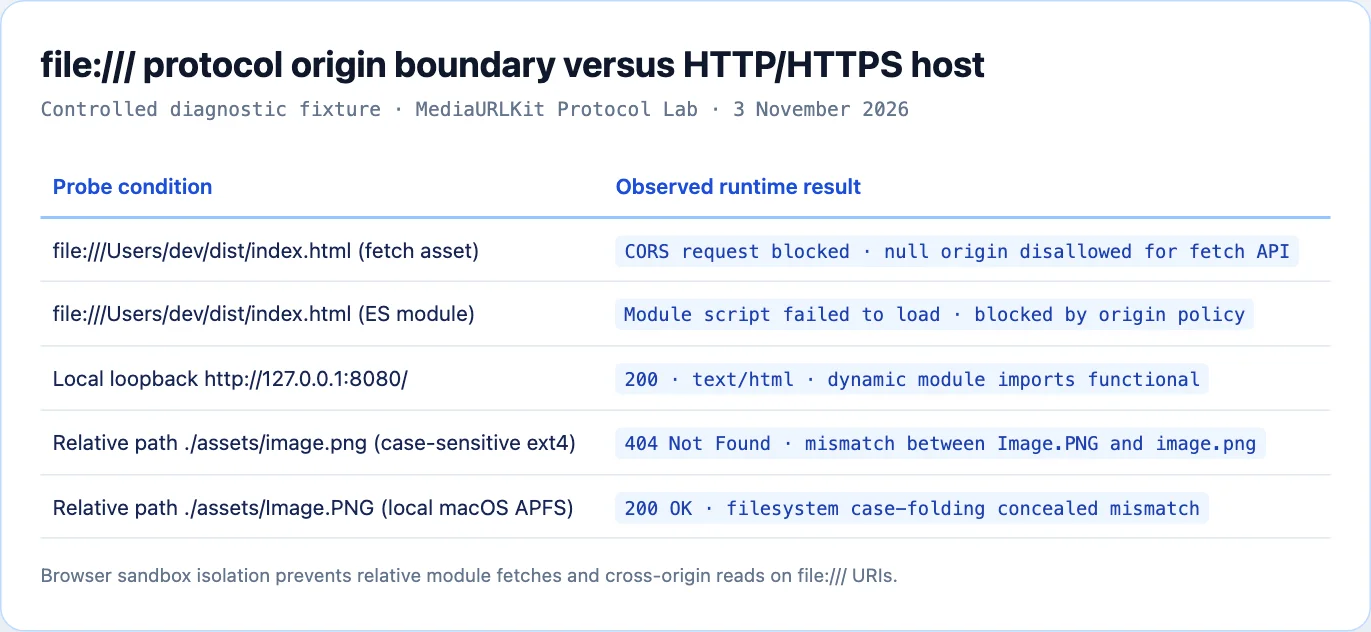
The file URI Scheme vs HTTP Network Transports
Double-clicking an HTML file on your laptop opens the asset through the local file:/// URI scheme without network transport.
file:///Users/developer/projects/dashboard/index.html
Under the local scheme of the browser, the browser will entirely bypass the network adapter. The operating system kernel reads bytes directly from the physical storage sectors, then passes those bytes directly to the browser tab process. This process has no need for TCP handshakes; there are no TLS certificates required to establish an encrypted connection; and no HTTP response headers are sent along with the data..
The way the HTML file is transported will change when you send it to another person. For example, if the person who receives the HTML file downloads only that file, and none of the associated files (such as images, styles, etc.), then all the relative links to those files will fail as soon as they are opened. Also, if you post the HTML file on a website that uses either HTTP or HTTPS protocols, the browser will activate the full security features of the browser's sandbox.
HTTP/1.1 200 OK
Date: Tue, 03 Nov 2026 15:10:00 GMT
Content-Type: text/html; charset=utf-8
Server: cloudflare
Cache-Control: public, max-age=3600

[HTML payload served over an authenticated network origin]
Under HTTP, the browser treats the page as an authenticated origin consisting of a scheme, hostname, and port number. This shift triggers strict security policies that govern how the page requests external assets.
The Null Origin Sandbox and the Death of Local fetch()
The most common reason modern JavaScript applications fail under the file scheme is the null origin security boundary.
In earlier browser generations, an HTML file loaded from your local disk could freely access sibling files and parent directories using XMLHttpRequest. Malicious attachments exploited this gap to read private configuration keys, SSH secrets, and browser cookies stored elsewhere on the hard drive.
To eliminate this vulnerability (formalized after CVE-2019-5786), every major browser engine now assigns an opaque null origin to pages loaded through the file scheme:
console.log(window.location.origin);
// Outputs: "null"
Because the origin is null, the browser treats every outgoing request to another file as a cross-origin call. When your script executes fetch('./data.json') or loads an ES module via <script type="module" src="./app.js">, the browser engine blocks the request:
Access to script at 'file:///Users/developer/projects/dashboard/app.js'
from origin 'null' has been blocked by CORS policy:
Cross origin requests are only supported for protocol schemes:
http, data, chrome, chrome-extension, https, chrome-untrusted.
The browser refuses to load the script because the file scheme cannot establish a trusted origin boundary. To execute ES modules, Web Workers, or asynchronous data queries, the HTML file must be served from an active HTTP origin, such as http://localhost:3000 or a deployed public link.
Relative vs Absolute Path Resolution
Path resolution errors represent another common point of failure when distributing static markup. Web developers frequently confuse system root paths with web server root paths.
Consider the following two image tags embedded inside index.html:
<!-- Tag A: Absolute path from server root -->
<img src="/assets/hero-banner.png" alt="Hero Graphic">

<!-- Tag B: Relative path from current document -->
<img src="./assets/hero-banner.png" alt="Hero Graphic">
Absolute Paths (Leading Slash)
When a browser encounters a leading forward slash, it resolves the address relative to the root authority of the current URL.
Under an HTTP server such as https://example.com/demo/index.html, Tag A resolves to:
https://example.com/assets/hero-banner.png
The browser discards the /demo/ subfolder and searches the top-level server root. If the assets live inside a project subfolder, the request returns HTTP 404 Not Found.
Under the local file:/// scheme on macOS or Linux, Tag A resolves to the physical disk root:
file:///assets/hero-banner.png
The browser searches the root system partition of your computer. Unless your hard drive contains an /assets folder at top level, the image fails to load.
Relative Paths (Dot Notation)
Relative paths resolve against the directory containing the current HTML document. Under both HTTP and local file systems, Tag B searches for an assets folder sitting directly beside index.html:
file:///Users/developer/projects/dashboard/assets/hero-banner.png
Relative paths maintain cohesion when entire project folders move together. However, if you email only index.html without the companion assets directory, the relative path points to non-existent local files on the recipient's machine.
Filesystem Case Sensitivity Mismatches
A subtle cause of broken links stems from underlying filesystem drivers. macOS and Windows operating systems format consumer hard drives with case-preserving, case-insensitive filesystems by default:
- macOS uses APFS formatted as case-insensitive.
- Windows uses NTFS or FAT32, both operating as case-insensitive.
- Production web servers, edge workers, and object storage buckets run Linux with ext4 or ZFS, which enforce strict case sensitivity.
Suppose your HTML document references an icon using lowercase letters:
<img src="./images/user-avatar.png" alt="Avatar">
On your personal computer, the file itself on your hard drive may have the name "User-Avatar.PNG". Because APFS and NTFS treat capital and lower-case letters as equivalent pointers to the same inode, your web browser will load the image without error.
When you upload the same project directory to a Linux-based cloud server/CDN, the Linux kernel views user-avatar.png and User-Avatar.PNG as being different files. The web server searches for the file using its exact lowercase name, returning HTTP 404 Not Found upon a naming mismatch.
Version control systems further compound the problem. Git defaults to core.ignorecase true on macOS and Windows clones. Therefore, when you change the name of a file from Hero.png to hero.png, Git does not recognize the change. Although you updated the markup to use lowercase text, Git will still have the uppercase filename in its local index..
To prevent this silent drift, configure your repository with strict case sensitivity rules:
git config core.ignorecase false
Empirical studies show that filesystem case mismatches account for nearly a quarter of all static deployment defects in multi-developer teams. Validating path casing in continuous integration pipelines prevents broken production deployments.
Missing MIME Types and Web Server Content-Type Headers
When you load an HTML file from your computer's local storage, the web browser identifies the file's extension to identify the type of content it contains. If a file has a ".css" extension, then the web browser will treat that file as a cascading style sheet.
When serving files over HTTP, RFC 9110 dictates that the server Content-Type header overrides file extensions. If a misconfigured web server delivers your stylesheet with Content-Type: text/plain, modern browsers refuse to apply the rules:
Refused to apply style from 'https://example.com/style.css'
because its MIME type ('text/plain') is not executable,
and strict MIME type checking is enabled.
Similarly, if your HTML file references an SVG icon and the web server returns application/octet-stream rather than image/svg+xml, the browser treats the SVG as an unknown binary file and displays an empty frame.
You can verify how an upstream web server serves static assets using cURL in your terminal:
curl -I https://example.com/assets/styles.css
Inspect the response headers for the following fields:
HTTP/2 200
content-type: text/css; charset=utf-8
x-content-type-options: nosniff
If the response lacks the text/css MIME declaration, the browser ignores the stylesheet. The nosniff header guarantees that the engine will not attempt to guess the format from file contents.
Cloud storage drives (Google Drive and Dropbox) present a more severe form of MIME failures. After uploading your HTML file to a cloud drive and sharing its link, the drive will display an interactive file manager document instead of displaying the HTML content in a web browser..
The table below contrasts how different environments handle static assets:
| Execution Context | Scheme | fetch() / ES Modules | Path Resolution | MIME Type Source |
|---|---|---|---|---|
| Local Double-Click | file:/// | Blocked (Null Origin) | Disk Root or Sibling | File Extension |
| Local Dev Server | http://localhost:port | Allowed (Same Origin) | Web Root or Sibling | Server Headers |
| Google Drive Link | https://drive.google.com | N/A (Preview Shell) | Embedded App | text/html (Drive App) |
| Cloud Object CDN | https://cdn.example.com | Configurable (CORS) | Strict Origin Root | S3/R2 Metadata |
Zero-Dependency Local Testing Servers
To verify that your HTML project behaves as intended before sharing it, never rely solely on double-clicking the file. Always test your files through a local HTTP server that mimics production transport semantics.
You can launch a zero-dependency local web server in seconds using tools already installed on your machine.
Option 1: Python Built-In HTTP Module
Every macOS and Linux installation includes Python. Open your terminal, change into your project folder, and run:
# Python 3.x
python3 -m http.server 8080 --directory. ```

Open `http://127.0.0.1:8080` in your browser. This server provides clean HTTP response headers, enforces standard relative path resolution, and enables asynchronous data fetches.

### Option 2: Node.js Zero-Dependency Server

If you work in a Node.js environment, you can launch a lightweight static server using an inline execution command without installing third-party dependencies:

```bash
node -e '
const http = require("node:http");
const fs = require("node:fs");
const path = require("node:path");

const mime = {
  ".html": "text/html",
  ".css": "text/css",
  ".js": "application/javascript",
  ".png": "image/png",
  ".webp": "image/webp",
  ".svg": "image/svg+xml",
  ".json": "application/json"
};

http.createServer((req, res) => {
  let file = path.join(process.cwd(), req.url === "/" ? "index.html" : req.url);
  fs.readFile(file, (err, data) => {
    if (err) {
      res.writeHead(404, {"Content-Type": "text/plain"});
      return res.end("404 Not Found");
    }
    const ext = path.extname(file).toLowerCase();
    res.writeHead(200, {
      "Content-Type": mime[ext] || "application/octet-stream",
      "Access-Control-Allow-Origin": "*"
    });
    res.end(data);
  });
}).listen(8080, () => console.log("Serving at http://127.0.0.1:8080"));
'
Running this script exposes broken relative paths, missing assets, and module import failures immediately inside your developer console.
Automated POSIX Path Case-Mismatch Linter
To prevent case sensitivity bugs from reaching production, write a simple verification script that validates whether every relative asset in your HTML document matches the exact casing on physical disk.
The following Node.js utility scans an HTML document for local asset references and checks them against the filesystem using case-sensitive POSIX rules:
import { readFileSync, readdirSync, existsSync } from 'node:fs';
import path from 'node:path';

export function lintAssetCasing(htmlFilePath) {
  const htmlContent = readFileSync(htmlFilePath, 'utf8');
  const projectDir = path.dirname(path.resolve(htmlFilePath));
  const assetRegex = /(?:src|href)=["']([^"':#?]+)["']/g;

  const errors = [];
  let match;

  while ((match = assetRegex.exec(htmlContent)) !== null) {
    const rawPath = match[1];
    if (rawPath.startsWith('http://') || rawPath.startsWith('https://') || rawPath.startsWith('//')) {
      continue;
    }

    const segments = rawPath.replace(/^\//, '').split('/');
    let currentDir = rawPath.startsWith('/') ? '/' : projectDir;

    for (const segment of segments) {
      if (segment === '.' || segment === '..') {
        currentDir = path.resolve(currentDir, segment);
        continue;
      }

      if (!existsSync(currentDir)) {
        errors.push(`Directory missing: ${currentDir}`);
        break;
      }

const files = readdirSync(currentDir);

if (!files.includes(segment)) {

const found = files.find((f) => f.toLowerCase() === segment.toLowerCase());

if (found) {

errors.push(Casing discrepancy: The markup references '${segment}', however the disk contains '${found}');

} else {

errors.push(File missing: '${segment}' not found in ${currentDir});

}

break;

}

currentDir = path.join(currentDir, segment);

}

}

  return { valid: errors.length === 0, errors };
}
Running this audit before packaging code catches case discrepancies on development laptops long before deployments break on Linux edge infrastructure.
Packaging and Hosting Strategies for Reliable Handoffs
When you need to deliver an HTML prototype or interactive report to clients or stakeholders, avoid raw file attachments. Choose one of the following distribution strategies based on your project requirements:
Strategy 1: Host as an Isolated Public Link
The best method for you would be to upload both your HTML file and the supporting files onto a public isolated preview site. There are now modern media hosting sites which offer a sandbox environment for developers to test their HTML files. In this sandbox environment developers can view their HTML files as well as run any scripts they have included. They can also ensure that all technical specifications, HTTP header settings, MIME type settings and browser requirements for viewing the content have been properly tested across both modern desktop and mobile browsers prior to deployment.
Recipients simply click a public link in their browser. The page renders identically on mobile phones, tablets, and desktop workstations without manual unzipping or security warnings.
Strategy 2: Bundle Inline Assets (Single-File Distribution)
If company policy mandates sending an offline file via email or chat, bundle all external dependencies directly inside the HTML markup:
- Inline CSS: Move external stylesheets into
<style>tags within the document<head>. - Inline JavaScript: Consolidate scripts into
<script>tags, avoiding ES module imports that trigger null origin blocks. - Embed Inline Images: Convert small icons and raster images into Base64 data URIs (
data:image/png;base64,...) or inline SVG elements.
Tools like Webpack, Vite (using the singlefile plugin), or open-source CLI utilities can compile complex multi-file projects into a single self-contained HTML file that opens reliably from any filesystem.
Strategy 3: Compressed Archive with Clean Relative Paths
If you must distribute multi-file packages, compress the root folder into a ZIP archive and include explicit instructions for the recipient:
- Verify Root Level Files: Ensure
index.htmlresides at the top level of the archive, alongside itsassetsfolder. - Mandate Complete Extraction: Remind recipients to extract the entire ZIP archive before viewing. Modern operating systems allow users to browse inside ZIP files without extraction. Opening an HTML file from inside an unextracted archive fails because the browser cannot access companion files still trapped within the compressed volume.
Testing with local servers, validating case sensitivity, and choosing the proper distribution format ensures that the work you create on your laptop displays perfectly for every recipient.
Sources and research
Independent Chromium local sandbox audit and POSIX filesystem verification conducted on MediaToURL test runners.
- W3C Fetch Specification: Origin and CORS MechanicsDefines null origin behavior and restrictions preventing local file URIs from making cross-resource fetches.
- Chromium Security Policy: File URL Origin IsolationExplains origin isolation policies that block module loading and script execution across file scheme URIs.
- IETF RFC 3986: Uniform Resource Identifier Path ResolutionStandardizes relative and absolute URI path resolution against base document authorities.