Compare direct navigation, download-marked links, PDF response headers, and browser preferences to locate an automatic PDF download.
The downloaded PDF opens perfectly after you save it. The website owner expected a browser tab with a document viewer, while the visitor sees a file appear in Downloads. That tells you little about the file's integrity. The browser may be following the server's attachment instruction, a Download button may explicitly request a save, or the visitor may have configured PDFs to open elsewhere. Those possibilities should be tested separately.
To ensure PDF brochures, product specs, and whitepapers open directly inside recipient browsers, use our pdf to link desk. This article concerns top-level opening and download handling. If the PDF opens in a new tab but is blank only inside an iframe, inspect framing policies and the iframe path instead. Changing a PDF to inline will not override a site's frame-ancestors restriction.
Start with a direct URL, then compare the button
Copy the actual PDF URL from the page and enter it in a fresh tab. You can also generate clean direct PDF links from the MediaToURL homepage. Then click the site's ordinary link or button and record the difference. If direct navigation opens the document while the button saves it, inspect the link and JavaScript action. A same-origin anchor with a download attribute can request a save. A script can also fetch bytes, create a blob URL, and click a temporary download anchor. In those cases the server may be correctly set for inline viewing; the page action chooses otherwise.
If entering the URL directly downloads it, inspect the final HTTP response. A redirected storage URL can carry different headers from the page link. In Developer Tools or with a GET capture, record status, content type, disposition, and the first bytes of the body. A PDF response usually begins with %PDF-, but that marker alone does not prove the rest of the document is valid. A 200 HTML login page at a .pdf path is an access problem, not a PDF-viewer preference.
curl -sS -L -D pdf-headers.txt -o response.bin 'https://your-owned-host.example/manual.pdf'
file response.bin
Do not rely only on curl -I: a HEAD route can be configured differently from a GET route, and a signed URL may be bound to a particular operation. A saved response body helps distinguish the actual PDF from an HTML error. Treat private delivery URLs as credentials when sharing diagnostics.
What the response can request
The clearest server instruction is Content-Disposition: attachment; filename="manual.pdf". MDN's Content-Disposition reference describes attachment as a download presentation and inline as normal inline processing. A useful inline response commonly includes Content-Type: application/pdf and either no disposition or inline. Test whether your PDF URL returns Content-Disposition: inline or attachment by pasting it into MediaToURL Link Doctor. For batch transfers involving multiple documents, the file to link workspace provides structured links with download toggles. The type tells the browser what the data is; disposition expresses a handling preference. Neither setting guarantees a viewer is installed and enabled for every visitor.
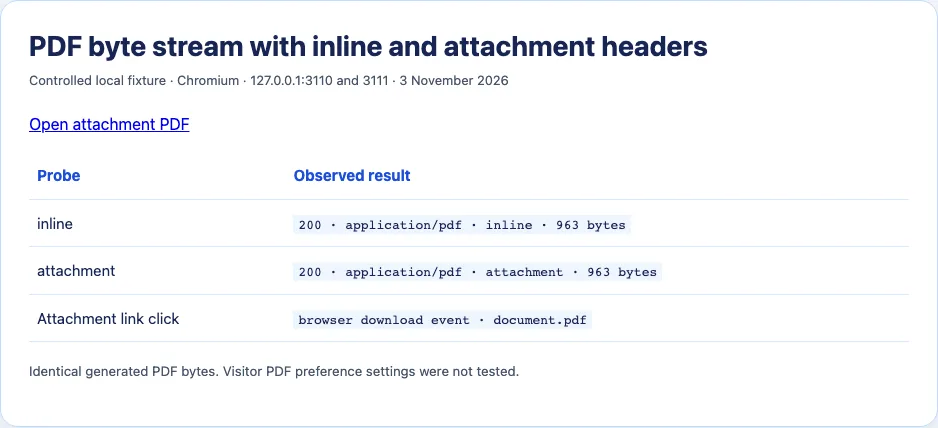
We generated a one-page PDF and served the same 962-byte body from a local endpoint. In Chromium 156, a header probe showed application/pdf with inline in one response and application/pdf with attachment in another. Clicking the attachment link raised a browser download event. The screenshot records that event, response metadata, and body length. It deliberately does not claim to prove how every desktop or mobile browser's download shelf will look.
If you control the delivery route and the intended action is viewing, set the correct content type and remove an unintended attachment disposition. Check object metadata as well as the final application or proxy response. If a CDN holds an older header, retest through the public URL after the applicable refresh or invalidation. Correcting metadata on a stored object is only useful if that metadata reaches the browser.
The page can ask for a download independently
Consider two links to the same file:
<a href="/files/manual.pdf">Open manual</a>
<a href="/files/manual.pdf" download="manual.pdf">Save manual</a>
The first offers normal navigation; the second expresses a save action in markup. The HTML anchor reference explains the download attribute and its restrictions, including its scope with respect to origins. An href pointing to another host will not necessarily obey the attribute as a same-origin link does. Server response headers can also influence the result. That is why testing direct navigation and the specific page control matters more than reading the label on the button.
For a product that offers both tasks, label them separately: Open PDF and Download PDF. The user should not have to guess whether a button is a viewer or a save operation. If the host intentionally sends attachment because the content should be saved, reflect that in the interface instead of presenting it as an unexpected failure.

A browser may make its own choice
Even with Content-Type: application/pdf and an inline disposition, a visitor can choose to save PDFs or open them in an external application. Enterprise policy and browser extensions may alter handling. A historical Mozilla Support discussion shows how easily viewing and downloading can be confused; its old preference details should not be used as a current settings guide for every browser. Ask for the browser name, version, operating system, and whether the same URL opens inline in a clean profile before recommending a settings change.
If one browser alone downloads a known-good inline response, inspect that browser's current PDF setting. If every browser downloads, the delivered header or page action is a more plausible common cause. Neither pattern is absolute, but it makes the next check efficient. Do not promise that an application can force inline display against a visitor's chosen browser behavior.
There are also cases where the browser cannot render the actual PDF. A response might be truncated, encrypted in a way the built-in viewer cannot handle, or simply not a PDF despite its name. Downloading and opening the file in a desktop reader may help characterize the document, but it is not a substitute for checking the response bytes and server logs. A failed viewer can present as a download or an error depending on the client.
Repair the layer you own
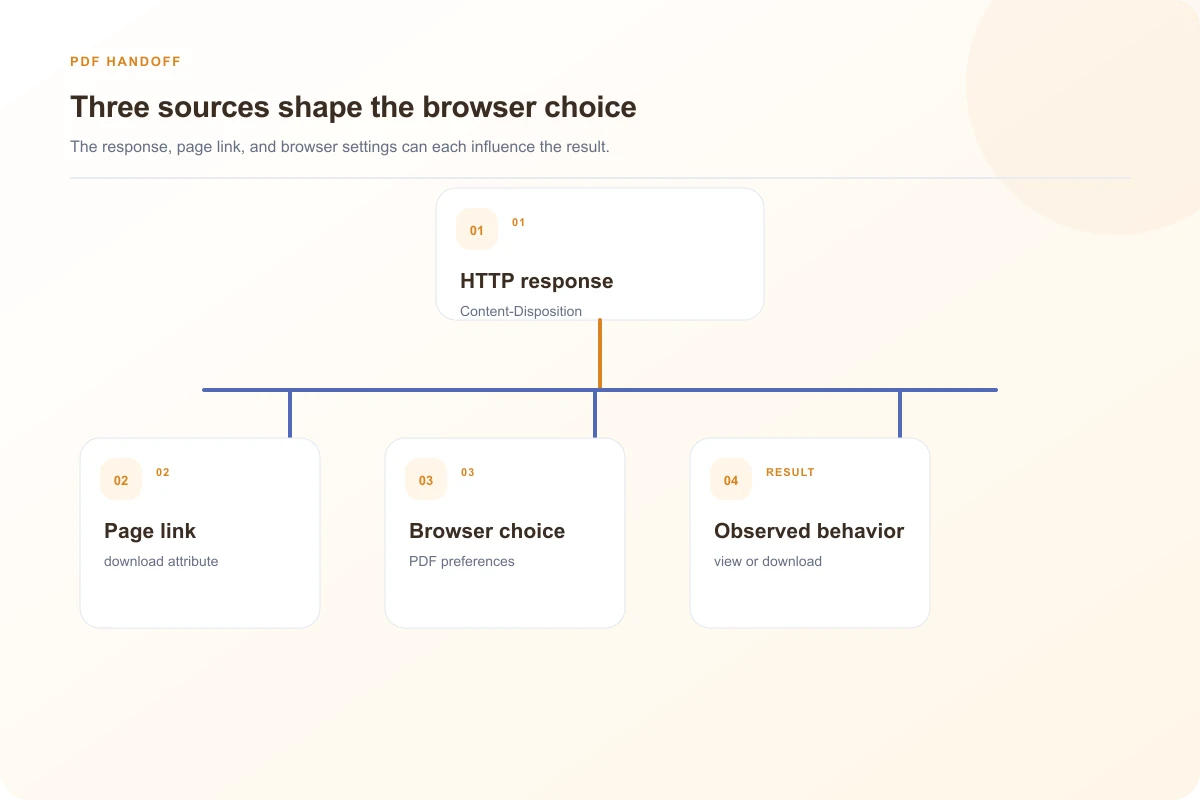
If the final GET says attachment and you own the host, change that delivery instruction and verify it at the visitor-facing URL. If the page adds download or a JavaScript save flow, change the link when the intended action is opening. If the visitor's PDF preference is responsible, present a direct link and explain the local setting without claiming you can control it remotely. When a third-party host forces attachment, you need that host to offer an inline endpoint or you must serve a copy through an authorized route with the correct access rights.
Preserve a working Download option even when inline viewing succeeds. A viewer is convenient for reading, while a saved copy may be needed offline or for a workflow in another application. The diagnostic goal is to make those actions intentional and to verify the actual response before attributing the behavior to the PDF file itself.
Check the response at every delivery route
A PDF may be served from an application endpoint, a storage URL, and a preview domain. Those routes can disagree. The application endpoint might set inline, but the redirect target can still send attachment. A content delivery layer may cache a header from a previous upload. Test the exact URL clicked by a user and save the final response headers after redirects. If you compare only an internal storage object, you may fix metadata that never reaches the public route.
Filename handling is separate from open-versus-save intent. Content-Disposition can include a filename parameter, which tells the browser what name to offer when saving. Changing that parameter may improve a downloaded file's name but does not, by itself, make inline viewing occur. Likewise, removing attachment does not make a corrupted file render. Verify the actual document body and type when a response looks right but the viewer remains empty.
If you operate a route that streams PDF bytes, be careful to pass through only the headers you intend. A generic “download file” helper may attach Content-Disposition: attachment to every media type. The PDF route can intentionally use inline while preserving a separate explicit download route. Reuse of a generic helper is a common place to investigate because it explains why many unrelated PDFs suddenly start saving after one server change.
For support, collect two small observations: what happens when entering the URL directly, and what happens when clicking the page control. Add the final type and disposition headers, browser version, and whether the PDF opens after saving. Those details identify whether the work belongs to the page action, delivery route, document generation, or local browser setup. A screenshot of the Downloads folder alone cannot make that distinction.
Three cases that look like the same download
In the first case, direct navigation downloads and the response says Content-Disposition: attachment. The server has explicitly asked for saving. If inline reading is intended and you own the endpoint, change that response and retest it. If the host is outside your control, your page cannot rewrite its response headers through an anchor tag. Request a viewer-friendly URL or provide an authorized delivery route.
In the second case, direct navigation opens the PDF, but the page button downloads. Inspect the button's anchor download attribute and click handler. The product may intentionally have a save action. Renaming the button or adding a separate Open link can solve the user confusion without any storage change. If the action is unintended, remove the save behavior and test again. Do not alter the object metadata when the direct URL already provides the desired view.
In the third case, the same inline response opens for one person and downloads for another. Compare browser settings and extensions, and verify that both people reached the same final response URL. If the response is identical, a local PDF handling preference is plausible. Offer a direct link and a download link rather than promising that your server can force a built-in viewer onto every device. Some mobile environments will hand PDFs to another application regardless of how a desktop browser presents them.
These cases can overlap. A page can have a download attribute while the server also sends attachment, and a user can have a save preference on top of both. Change one variable at a time. A controlled response capture and direct-link comparison tell you which layer is necessary to fix; the actual button behavior tells you whether the interface matches the intended action.
One useful test uses the same PDF bytes through two controlled endpoints: one with inline, one with attachment. This isolates response intent from the document itself. Then click plain links to both from the same browser profile. If only the attachment path saves, the server header is doing what it requests. If both save, inspect browser settings and the link markup. If the plain links behave differently from the product button, inspect the button's action. That small matrix is more useful than repeatedly changing the file extension.
For a private PDF, avoid sharing the full redirect or signed URL while collecting evidence. Copy the status and relevant response headers, then redact query parameters that grant access. If a diagnostic tool follows redirects automatically, preserve enough of the chain to identify which host applied the final disposition. This keeps the investigation reproducible without turning a support ticket into an unintended file-sharing channel.
Sources and research
An original generated PDF was served with inline and attachment response headers on localhost in Chromium 156 on 3 November 2026. Visitor PDF preference settings were not tested.
- MDN: Content-DispositionAttachment and inline signal different presentation intent, including optional filenames.
- MDN: HTML anchor elementA download attribute can request saving a linked resource, subject to origin and browser behavior.
- Mozilla Support: PDFs opening and downloadingA user report distinguishes browser viewing from saving and illustrates preference-related confusion.