Distinguish a downloadable file from a decodable media response by checking the selected source, bytes, codec, player error, and autoplay state.
You can click an audio URL and save a file, yet the player on your page remains silent. That does not establish that the browser received playable audio. When sharing podcasts, voice cues, or sound stems, generating an audio to link ensures correct MIME types and instant browser streaming. A download can contain an unsupported codec, a truncated stream, or even an HTML sign-in page named like an MP3. The player also has a separate question to answer: did it try to play and fail, or did a browser policy refuse automatic playback before decoding began?
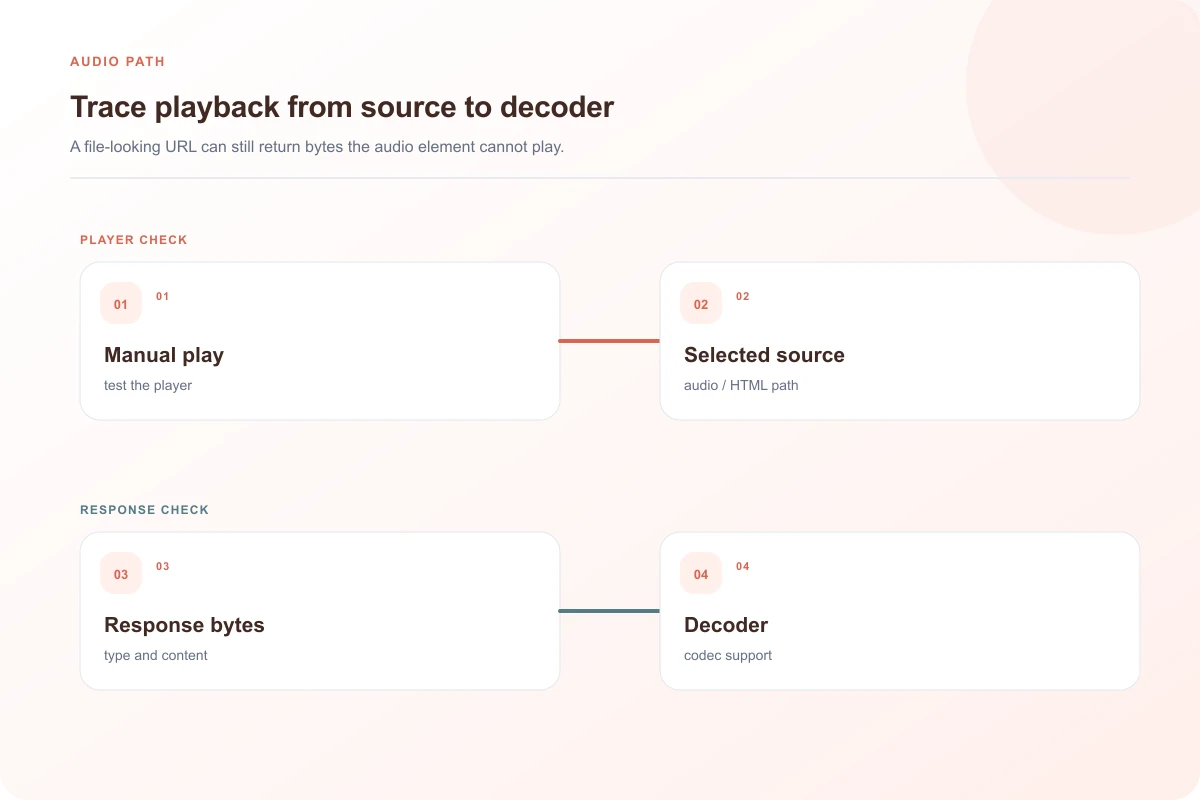
Press a visible Play control first. A manual click separates most autoplay refusals from ordinary source failures. Then inspect what the media element actually selected and what the server returned. This is faster than converting every file to a different extension and hoping the label was the problem. If your sound file accompanies visual footage, uploading through video to link ensures synchronized playback across devices. You can also host all media assets from the MediaToURL homepage.
Find the selected source and the failure category
In Developer Tools, select the <audio> element and inspect currentSrc. A page with several <source> children may select a different URL from the one you tested in a separate tab. Network should show that selected request's final status, content type, response size, and redirects. You can also test any audio endpoint with MediaToURL Link Doctor to verify Content-Type and Accept-Ranges streaming headers. If the URL redirects to a private storage endpoint, inspect the final response rather than the original-looking path.
For a small diagnostic page, the media element gives useful clues:
const player = document.querySelector('audio');
console.log({
  currentSrc: player.currentSrc,
  readyState: player.readyState,
  networkState: player.networkState,
  errorCode: player.error?.code ?? null
});
MDN's MediaError reference groups errors into aborted, network, decode, and unsupported-source categories. The numeric category is not a codec detector. If the selected URL returns HTML, the useful diagnosis comes from the response body and type, not from trying to translate the error code into a particular encoder name. Keep console messages and the Network response beside the player's state.
An MP3-looking path can return something else
We generated a short 440 Hz MP3 tone. One local endpoint responded with 24,809 bytes and Content-Type: audio/mpeg. A second endpoint used the same .mp3 path shape but returned 16 bytes of HTML with Content-Type: text/html, representing a simple sign-in response. Both GET requests had status 200. The screenshot shows why checking only status and file suffix would miss the problem.
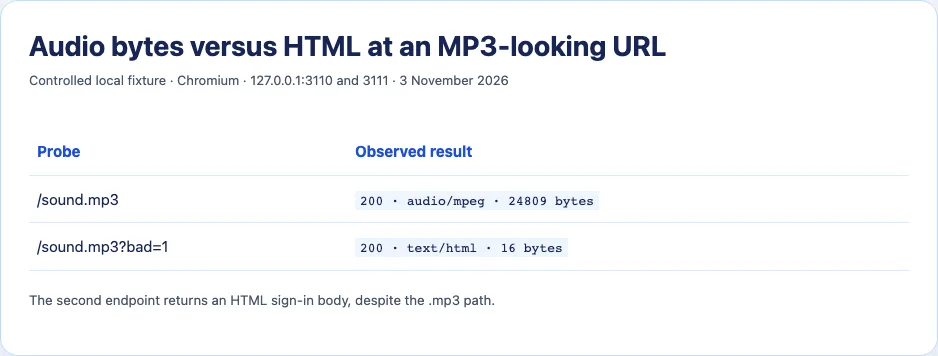
This fixture demonstrates response identity, not a complete cross-browser playback survey. An actual service might instead return a 302 redirect, 401, 403, expired signed URL, or an error document with a misleading content type. Save the body of a failed response when permitted, and compare it with the original file. If the body is not audio, repair access, redirect, or delivery before touching codecs.
For a file that really is audio, check its actual encoding with a media inspector:
ffprobe -v error -show_format -show_streams downloaded-audio-file
A filename such as lecture.m4a gives a container clue, not a guarantee about the codec inside it. The MDN codec guide documents how support can vary with browser and operating system. Record the codec reported by the file, the exact browser version, and the selected source. Re-encoding a copy to a widely supported format can be appropriate when your audience's browsers cannot decode the original; renaming the file without changing its encoded streams cannot solve that mismatch.
Check the markup and the manual-play path
A straightforward player might be:
<audio controls preload="metadata">
  <source src="/media/lesson.mp3" type="audio/mpeg">
  <p>Your browser cannot display this audio control. <a href="/media/lesson.mp3">Download the file</a>.</p>
</audio>
The type attribute helps the browser choose among candidates. It should describe the real file, not merely repeat the extension. If the browser supports the audio element but all sources fail, the fallback paragraph inside <audio> may not become the error message a user needs; add a visible application-level error state when appropriate. MDN's audio-element reference covers source selection and controls.
If a script calls player.play() on page load, inspect the returned promise. A NotAllowedError can indicate an autoplay policy refusal. That is different from the user pressing Play and seeing a media decode or network error. A page should not treat an autoplay rejection as proof that the file is corrupt. Give the listener a control they can activate, and decide separately whether autoplay is appropriate for the experience.
Ordinary playback of cross-origin media does not always require the same CORS permission as reading pixels or processing media through another API. Do not add Access-Control-Allow-Origin as a universal response to silence. If your player explicitly uses cross-origin mode or Web Audio analysis, its requirements may differ; inspect the exact failed request and API. A response that returns HTML or unsupported encoding will remain unplayable even if it has a permissive CORS header.

Repair based on the evidence
When the selected URL returns a login or error page, fix authorization and response routing. When the bytes are valid audio but the type is misleading, correct delivery metadata and retest the public endpoint. When the browser cannot decode the actual codec, publish an encoded alternative supported by your intended clients and offer a download for other applications. When the only failure is programmatic autoplay, keep manual playback available and handle the rejected promise in the interface.
If the file plays locally but fails after upload, compare hashes and lengths. An incomplete upload can leave a file that a desktop player partly tolerates while a browser fails on later frames. A support report is most useful with the selected URL stripped of credentials, response status and type, ffprobe stream details, browser version, and the media error category. Those observations identify an owner; “the MP3 link downloads” does not.
A practical isolation session
Put one known-good file and the failing file on the same delivery route, then play both from a simple page with controls. If the known-good file works, basic routing and player markup are less likely to be the cause. If neither works, look first at the common response path, authentication, CSP, or page script. Next serve the failing file locally from a simple static server with the correct type. Success locally but failure after upload points toward changed bytes or delivery behavior; failure in both places suggests encoding or file integrity.
Make the comparison fair. Use the same browser, interaction, and page origin. Starting one file with a click and the other through autoplay would mix two distinct questions. If the page has several source candidates, temporarily reduce it to one explicit source at a time and record currentSrc. The browser may silently skip a candidate based on its declared type, so an apparently failing MP3 could be a different selected file.
For a failed network request, read the response body only when you have permission. A text preview can expose an expired-token message, a sign-in page, or an application error. A successful 200 is not enough, as the local fixture shows. Check whether the response was a redirected HTML page and whether Content-Length or transferred size matches the original asset. If the server claims audio/mpeg while delivering HTML, fixing the MIME label alone would only conceal the underlying access error.
When browser support is the issue, publish alternatives based on your actual audience rather than a universal codec claim. Re-encode from a high-quality original when possible, not from an already heavily compressed derivative, because transcoding can add artifacts. Compare duration and sample behavior after encoding. A download link remains useful for people whose device has an external player even when the in-page experience is designed around one supported format.
Finally, add visible failure feedback. A silent control that never starts provides no next step. Show a concise message when all sources fail, offer the authorized download, and keep technical detail in logs for the maintainer. The user's need is to hear the file; the maintainer needs enough evidence to locate whether the failure came from selection, delivery, decoding, or policy.
One more useful comparison is to inspect the response before and after a login session expires. If the page loads while authenticated but the audio request is delayed until the user presses Play, a short-lived delivery link may no longer be valid when the browser finally fetches media. The resulting 403 belongs to access and renewal, not codec support. Avoid copying a signed link into a long-lived page without an access-aware refresh path.
Also record whether the server handles partial requests. Browsers may use range requests for media, and an endpoint that mishandles them can cause playback or seeking trouble even though a full-file download succeeds. A simple GET of the whole MP3 is only one transport test. For a reproducible failure, preserve the actual request and response produced by the audio element, including any Range header and final status. Repairing the response path is more reliable than changing player controls around a bad endpoint.
A realistic player investigation
Suppose an audio page has an MP3 source and a transcript. The download button saves a file that plays in a desktop application, yet the web player is silent. Start with a manual Play click, then look at currentSrc. If it points to a different, newly generated URL, the downloaded file is not the one the browser is trying to play. Fetch the selected URL and inspect its final response. A 302 to a login page can explain the player failure even though the separately downloaded file is fine.
If the selected URL returns the expected bytes, run ffprobe on those bytes and compare them with the original. An extension is only a label. The file might contain a codec supported by the desktop application but absent in the target browser's decoding stack. Test an alternative known-good encoding through the same route. If that plays, the response path is probably viable and the codec becomes a stronger suspect. Record the exact browser and operating system; codec availability can depend on both.
If the codec is supported and the body matches, watch the player events. An error event with a decode category suggests the browser could not process part of the stream, while a rejected play() promise with NotAllowedError points to a different policy path. Do not map one numeric error code to a specific corrupt frame without more evidence. A truncated body, malformed headers, or an interrupted connection can produce a broad media error that requires inspecting the response itself.
An audio player should also be usable when the browser cannot decide immediately. Keep visible controls, show a loading state while metadata arrives, and provide a clear error if all candidates fail. A bare “Download” fallback is appropriate for a device with another player, but it should preserve the file's access controls. This makes the page helpful while the technical investigation continues, without pretending that every downloadable file will play in every browser.
The final verification should use the deployed page and the exact file the visitor will request. A successful local encoding test is useful, but it cannot confirm that an edge route preserves bytes and media headers. Press Play manually in the target browser, observe a nonzero duration and audible output, and keep the response record with the release.
Sources and research
An original generated MP3 and an HTML sign-in body at an MP3-looking path were served on localhost in Chromium 156 on 3 November 2026. Codec support across browsers was not tested.
- MDN: Audio and video deliveryDelivery headers and source choices influence media playback.
- MDN: Web audio codec guideContainer and encoded audio format differ; support can depend on browser and platform.
- MDN: MediaError.codeMedia errors expose broad network, decode, and unsupported-source categories.
- MDN: Autoplay guideProgrammatic playback can be refused by autoplay policy.
- MDN: audio elementThe audio element supports source alternatives and visible controls.